Assembly guide
This guide describes how to assemble and configure a sensor from an OpenTac-CAD export. First verify the board outline against the mounting surface, then print the case, cut the piezoresistive layer, assemble the stack and connect the readout board. The tray, cutting template and bump sheet share the PCB's design geometry, which constrains their alignment. Once the parts are available, assembly takes a few minutes and requires scissors and thin double-sided tape.
The video follows the five assembly steps: arrange the parts, seat the PCB in the tray, add the piezoresistive textile, attach the bump sheet, and connect the tail to the readout board.
What you need
- the flex PCB (Order the sensor);
- a readout board that matches the sensor's connector (Readout boards) and a USB cable;
- a piezoresistive sheet: film or fabric (Materials);
- TPU filament (85–95A) and a 3D printer;
- thin double-sided tape;
- printer paper and scissors.
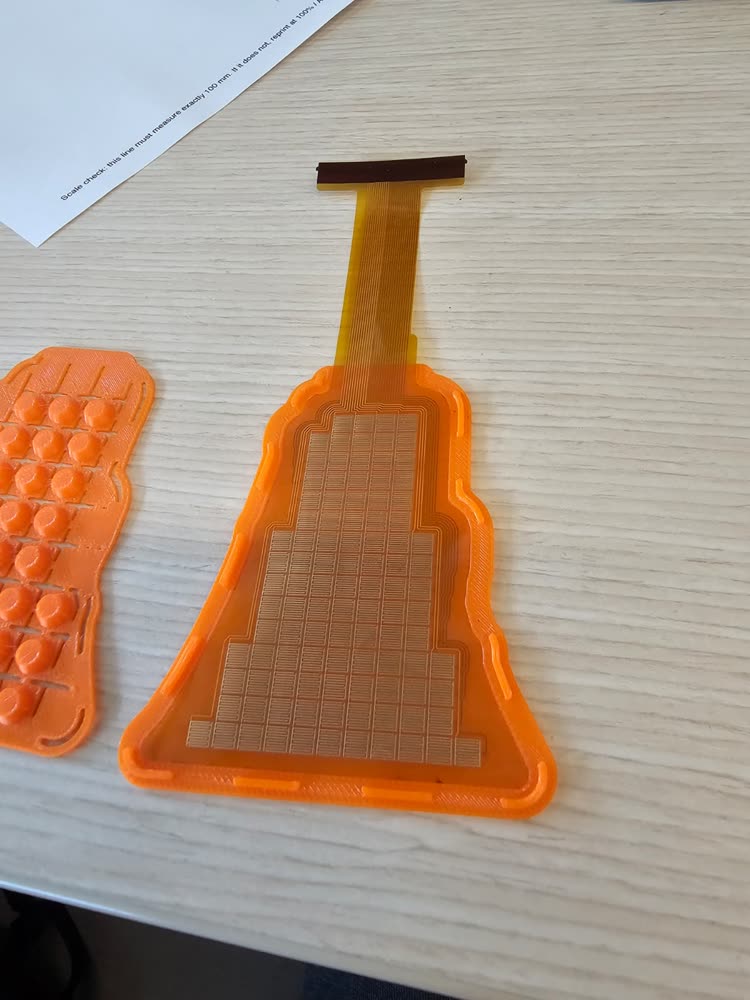
The photos below are from a 15×11-taxel sensor for the jaw of an AgileX Piper gripper. Other designs follow the same steps with their own part and tail length.
Check the fit on paper
Verify the outline and tail routing before ordering the PCB. A paper template lets you check these dimensions directly on the intended mounting surface.
- Print
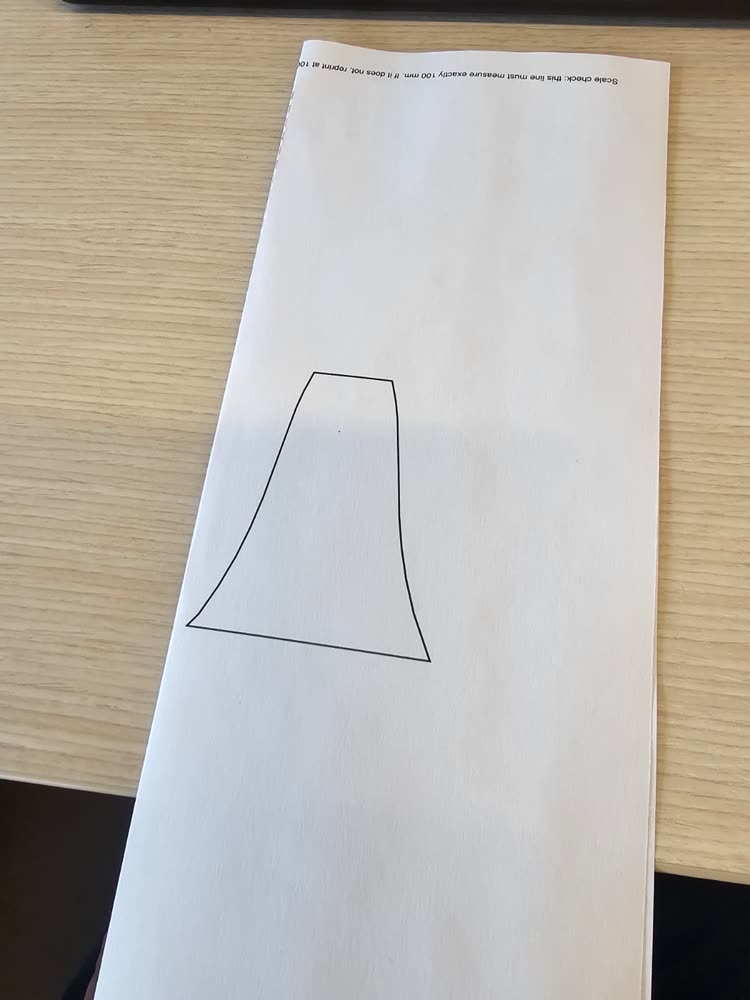
printable_1to1.pdffrom the export at 100% / Actual size, not Fit to page. - Measure the ruler on the sheet: it must be exactly 100 mm. If not, reprint.
- Cut along the outline and hold it against the part. Wrap the tail along the path the cable will take to the readout board.
The PDF draws the board's real manufactured edge, including the tail, not just the shape you drew.
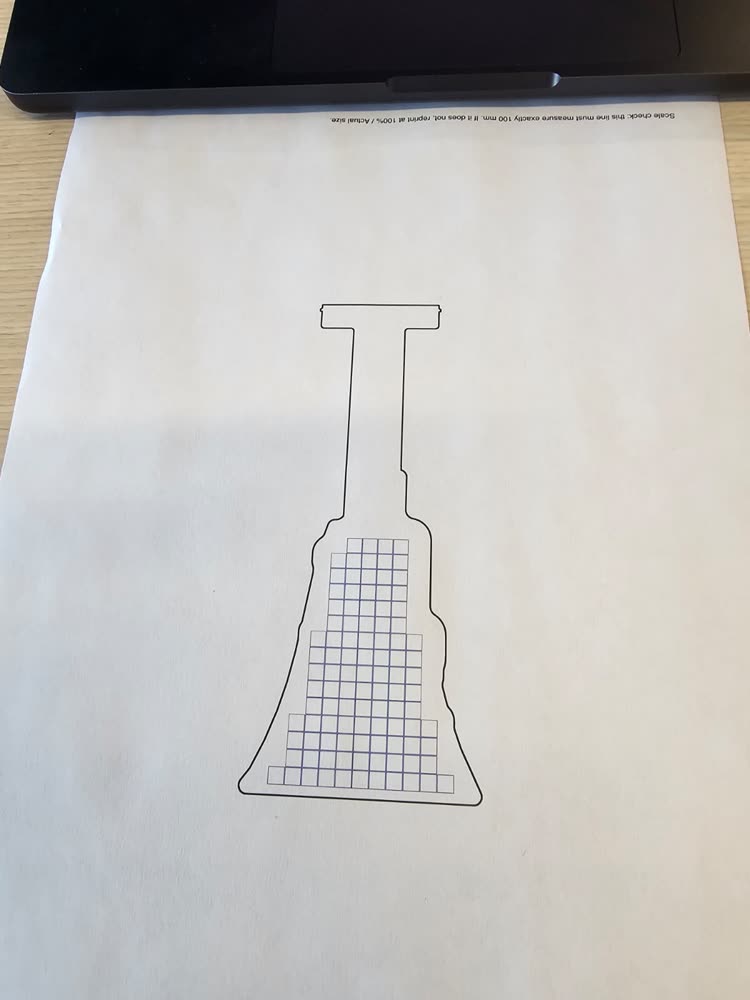
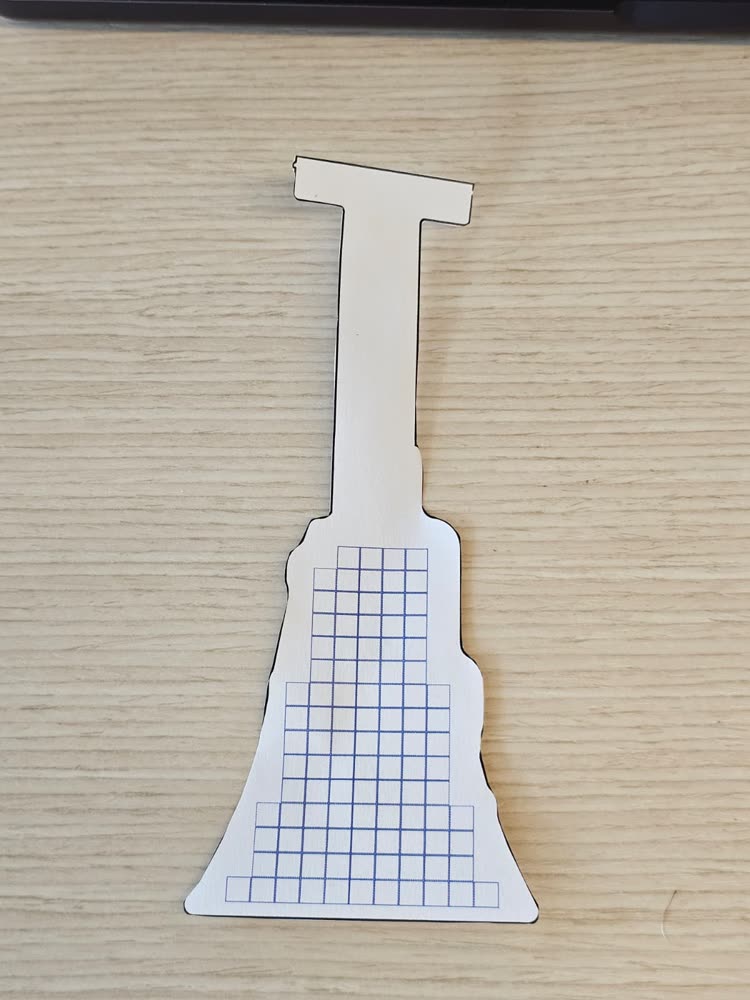
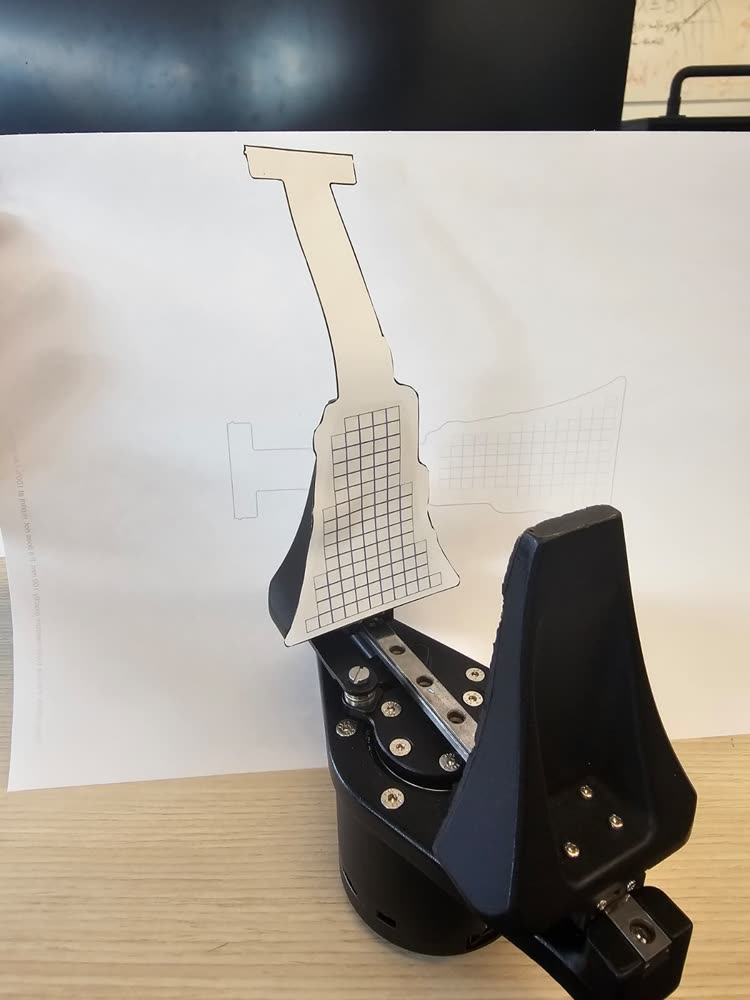
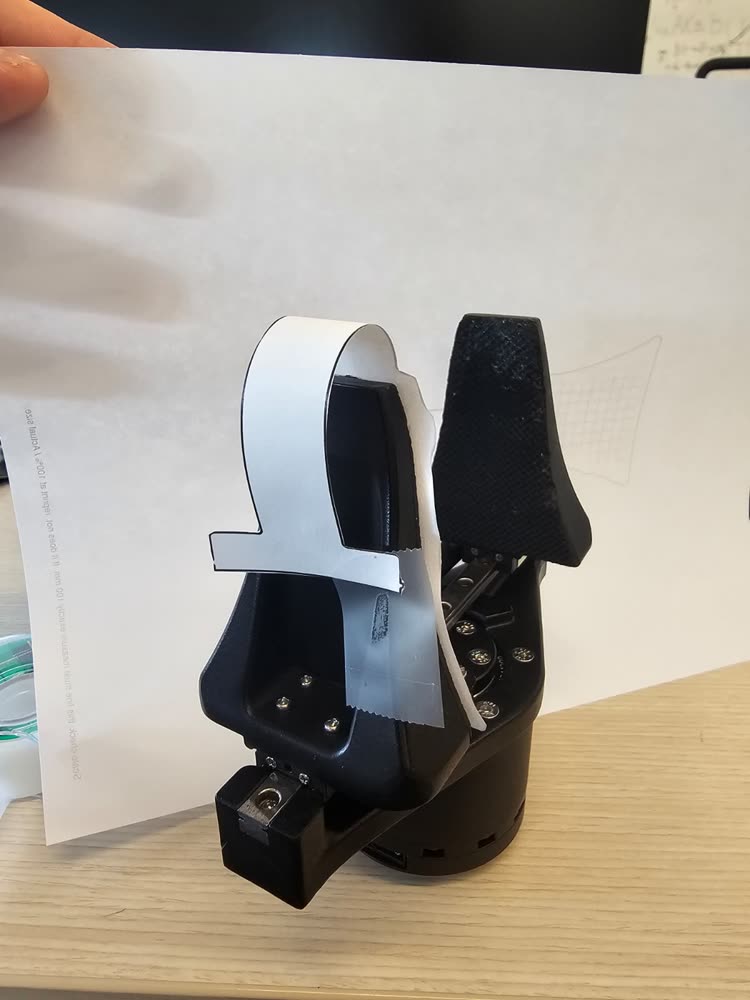
If it does not fit, change the design and print again.
Print the case
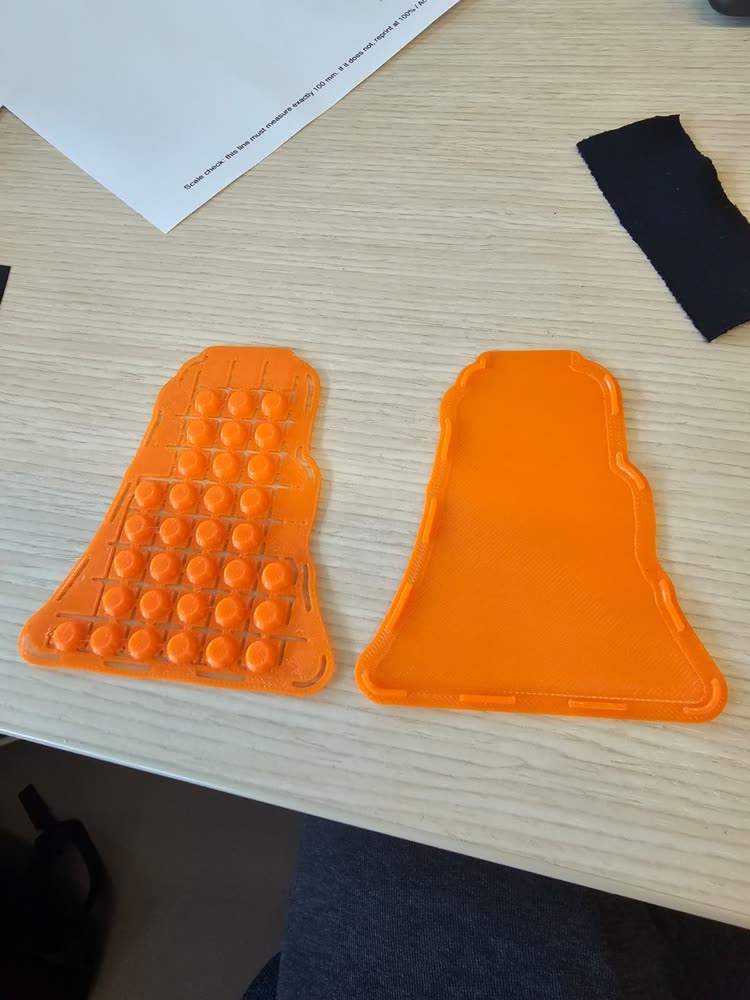
The case STLs are in the case/ folder of the ZIP from Download ZIP: the bottom and three lids. Print the bottom and one lid. To change the case settings or preview the parts first, tick Add a printed case in OpenTac-CAD, choose the top piece and press Generate case. Download bottom and Download top save single parts, and the next Download ZIP uses the same settings.
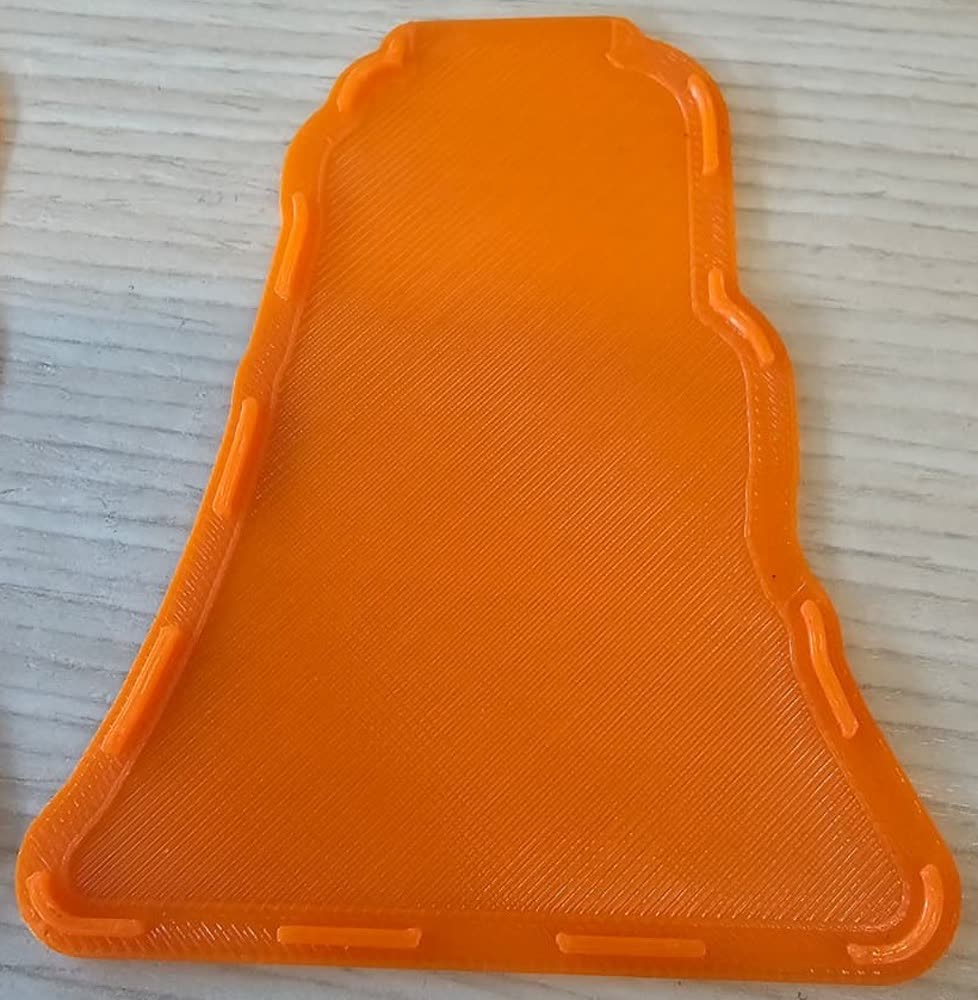
- Bottom (tray): a shallow pocket cut to the board's exact outline, holding the flex and the piezoresistive layer.
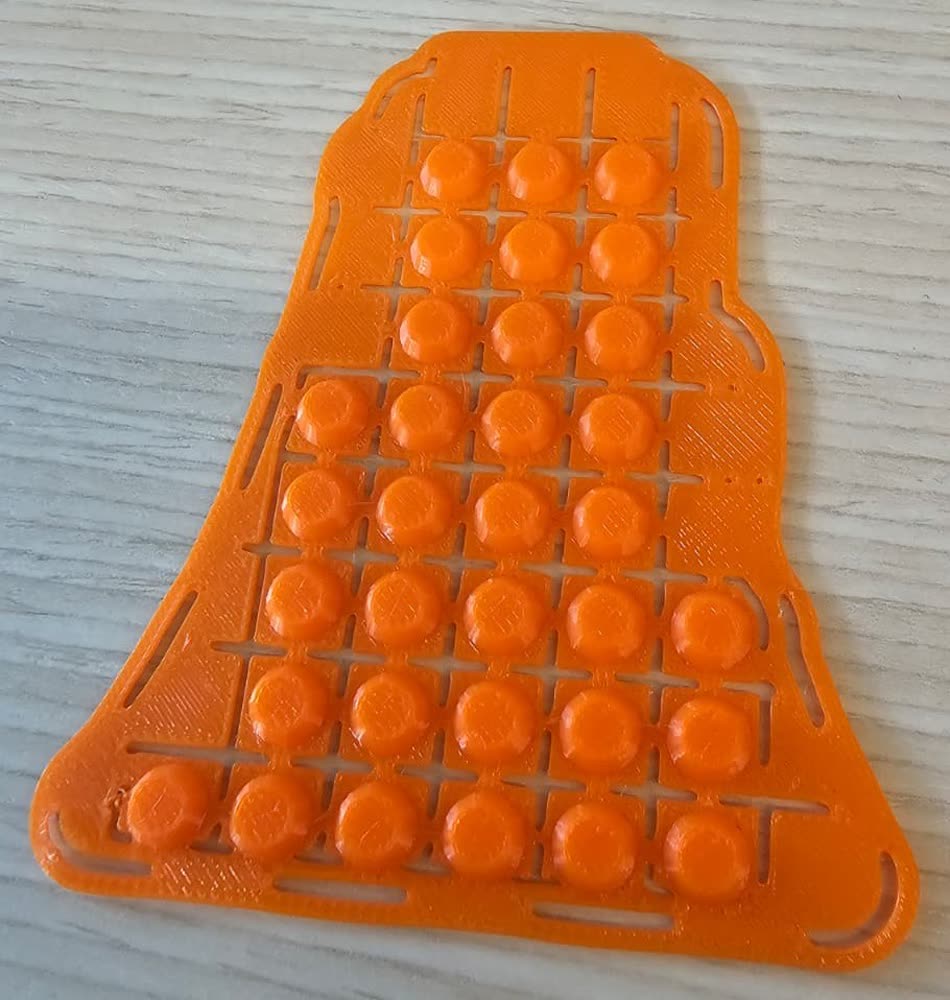
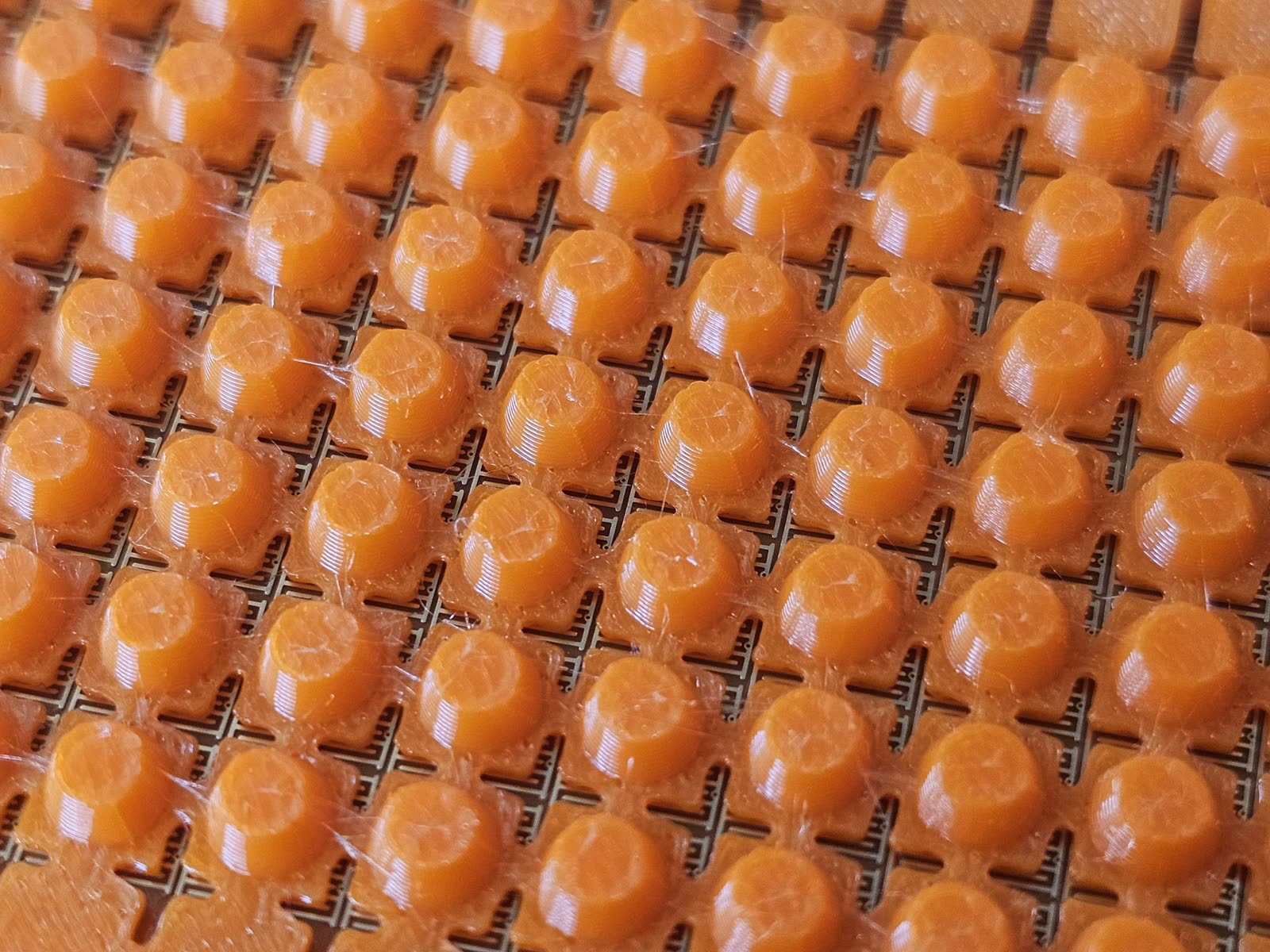
- Top: Flat, Hatched, or Shear-sensing bumps. For shear, choose bumps: one bump sits over each 2×2 group of taxels.
Print both in TPU (85–95A). The bumps must be soft enough to tip; a rigid print reads normal force only.
Cut the piezoresistive layer
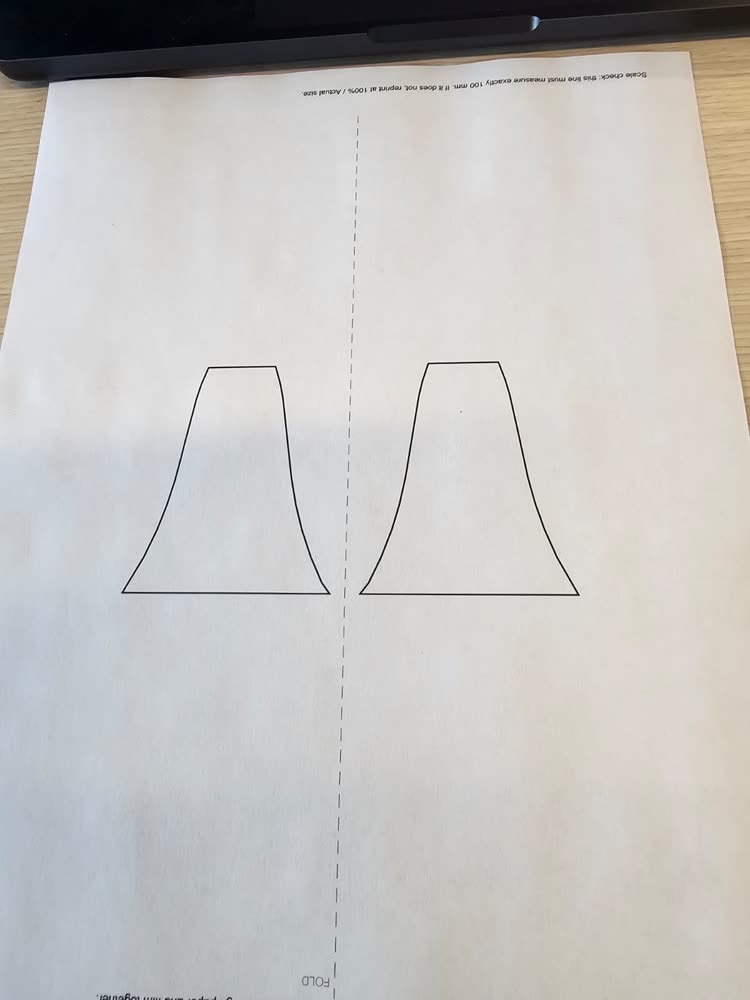
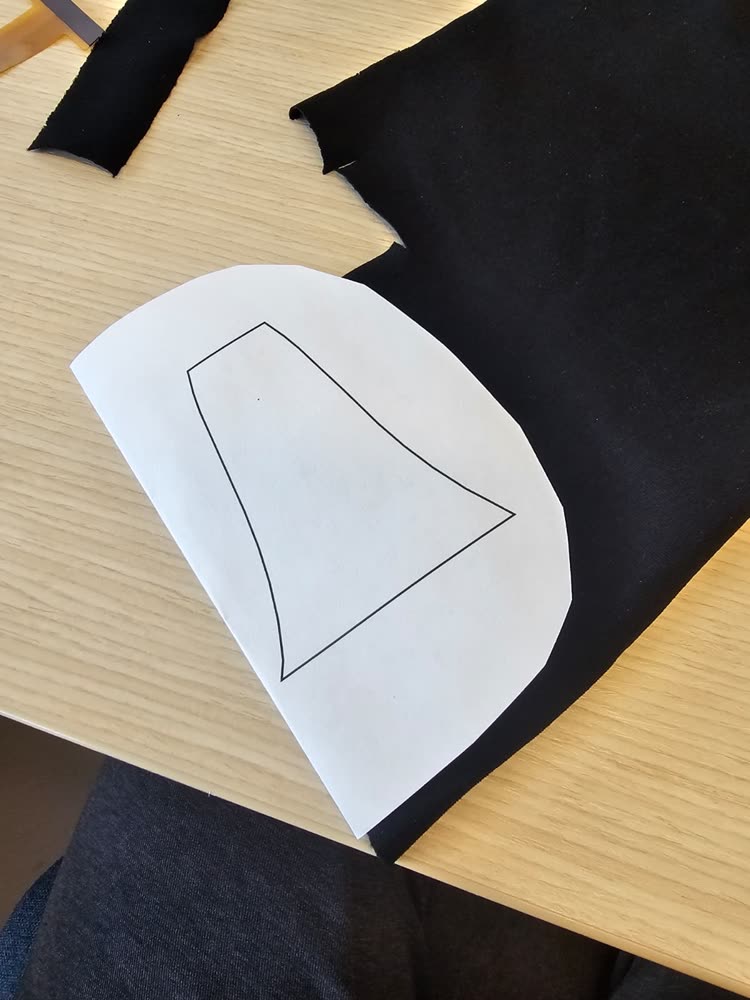
The export includes two versions of the sensing-area outline: velostat/velostat_cut.dxf for a laser cutter or cutting plotter, and velostat/velostat_fold_template.pdf for cutting with scissors. The PDF places mirrored outlines on either side of a fold line. Folding the paper around a thin film or textile holds it flat during cutting. The template covers the taxels and excludes the connector tail.
- Print the fold template at 100%.
- Fold it on the dashed line, printed side out, and trim the folded paper roughly around the shape.
- Slide the sheet inside the fold. Both outlines line up, so the cut line shows on both sides.
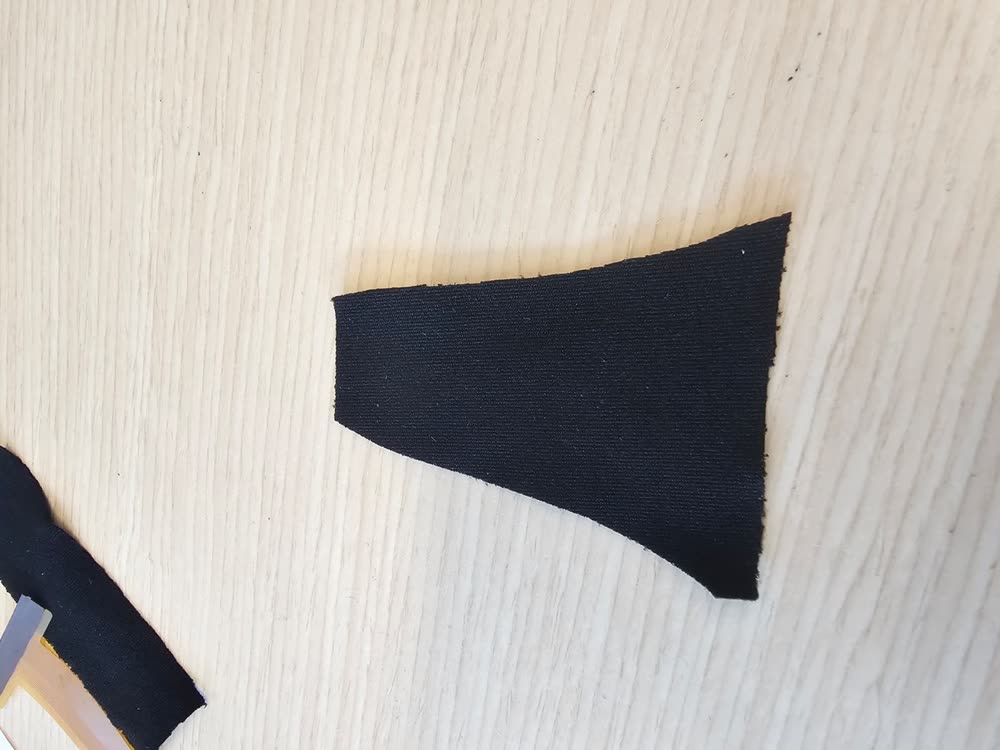
- Cut through paper and sheet together on the line, then peel the paper off.
Assemble
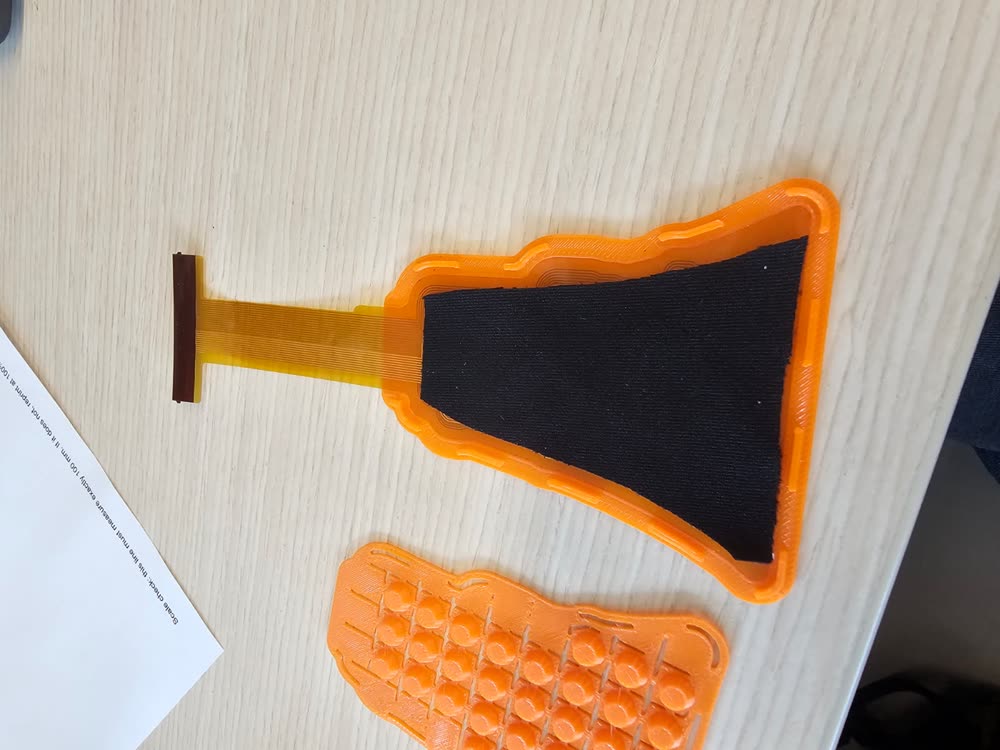
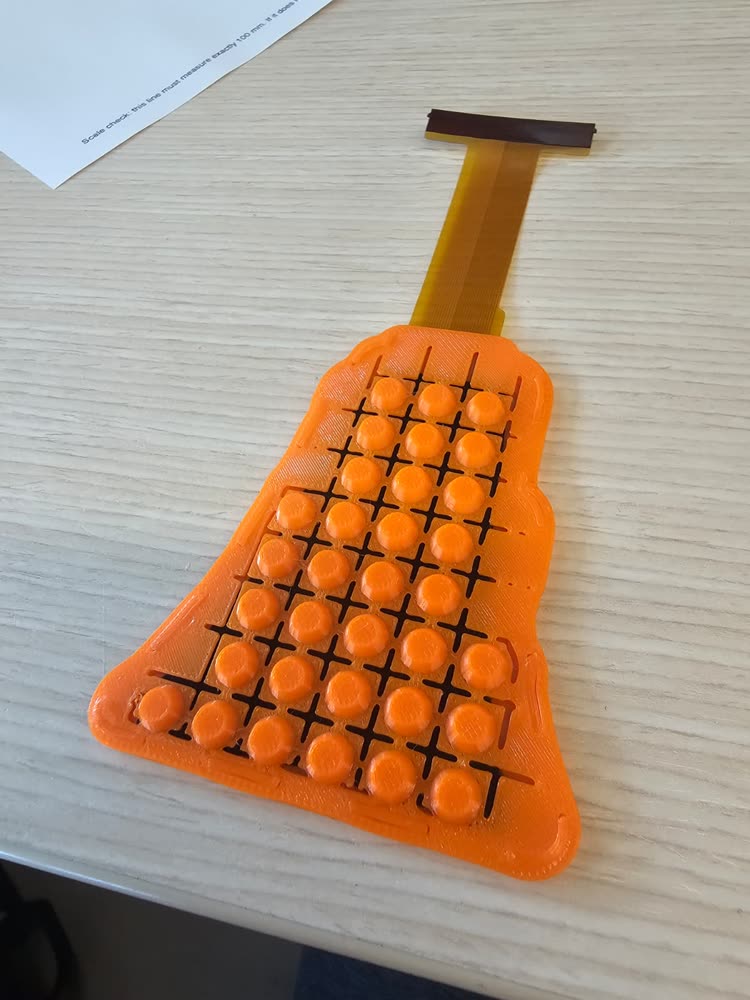
- Lay out the parts: the printed tray, the flex PCB, the piezoresistive piece and the bump sheet.
- Board into the tray. Put thin double-sided tape on the back of the flex and press it into the tray's pocket, taxels up. Seat the PCB flat within the matching outline.
- Piezoresistive layer on top. Lay the cut piece over the taxels. It is cut from the same outline, so it covers every taxel.
- Press the bump sheet on. Press it down all the way around the edge; a rib holds it shut. The bump sheet comes from the same design file as the board, so the cross-shaped base of each bump falls into the gaps between taxels and each bump centres itself over its 2×2 group. Check that the lid is seated around the full perimeter.
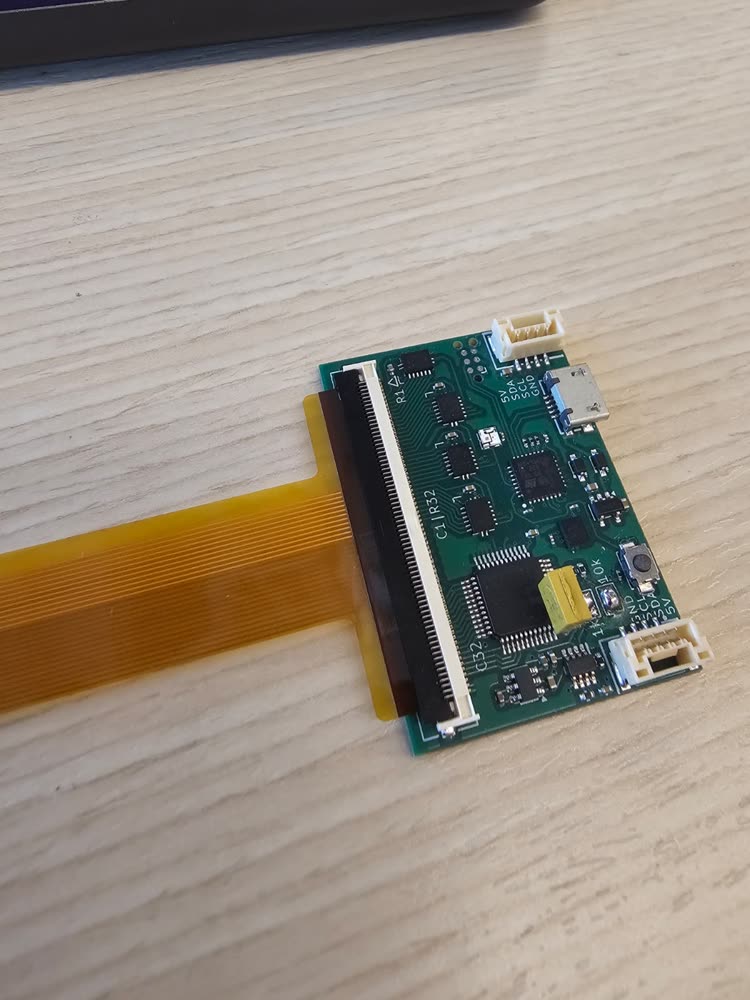
- Tail into the readout board. Flip up the connector's latch, slide the tail in all the way with the stiffener (the taxel side) facing up and the contacts facing down, and press the latch closed. Then plug in USB.
Read the sensor
After connecting the tail, flash the readout board, upload the sensor manifest and verify the response in the live viewer. Initial setup takes about ten minutes. Run the commands from the code repository (Get started).
- Plug the readout board into the computer with a micro-USB cable that carries data (some cables only charge). The board shows up as a serial port, with no adapter or programmer.
-
Flash the firmware, once per board. Install
dfu-util(macOS:brew install dfu-util; Linux:sudo apt install dfu-util), or STM32CubeProgrammer on Windows, then:The command identifies the board, restarts it in bootloader mode and writes the corresponding firmware. A board fresh from assembly has no firmware and cannot answer: hold its BOOT0 button while you plug it in, release it, and name the board,
uv run opentac flash --board readout60for the 60-pin board or--board node16for the 30-pin pair. Flash the firmware has the details and two other ways to flash.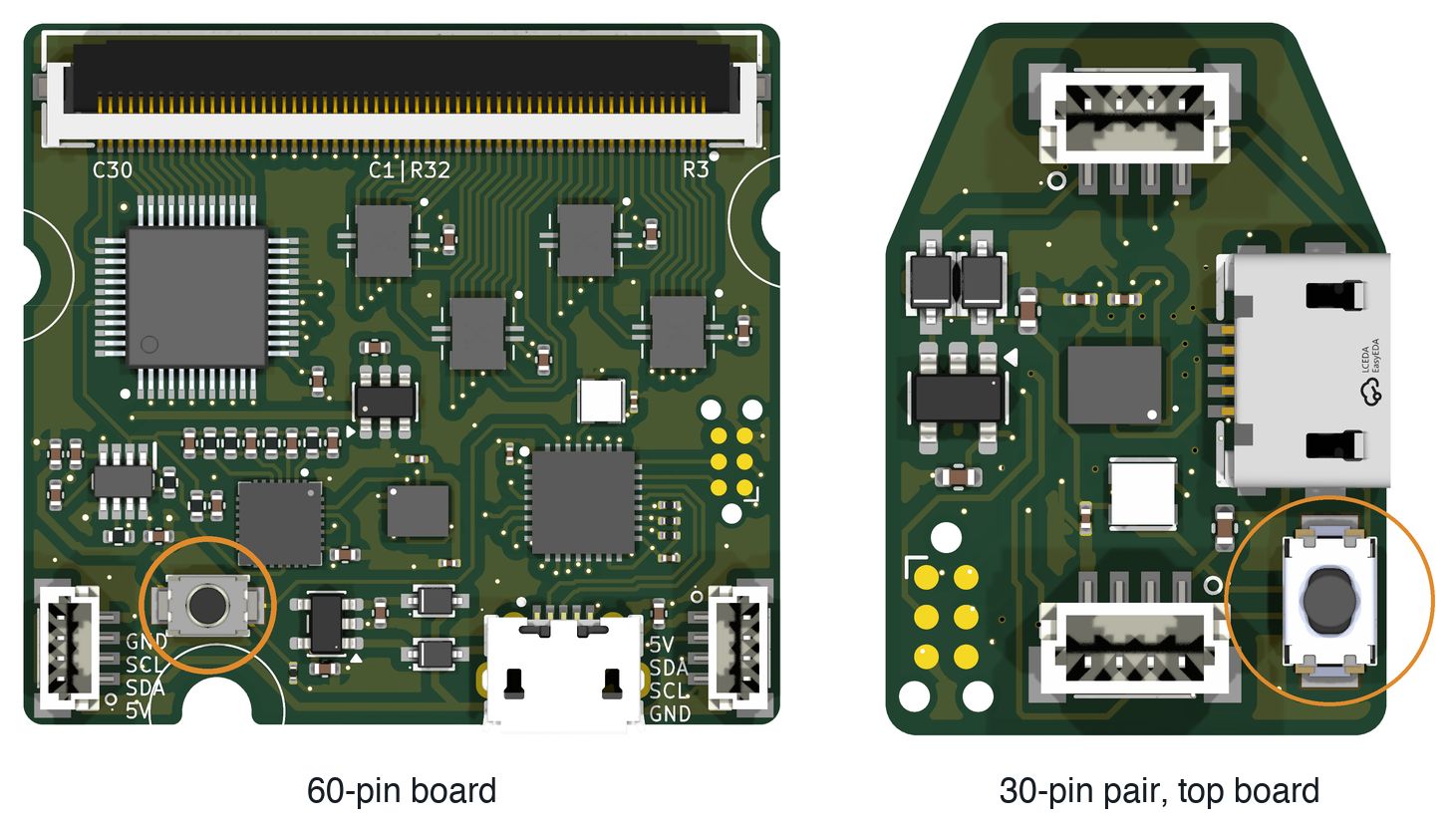
The BOOT0 button (S4), circled. Renders of the boards' KiCad files, not to scale with each other. -
Upload the sensor manifest whenever the sensor changes. Give it the ZIP you downloaded from OpenTac-CAD (or the
manifest.jsoninside it):The board stores the sensor's layout in its own flash and keeps it through power cycles and reflashing.
uv run opentac infoshows what the board holds. -
Open the live view.
--shearadds the shear arrows; use it with the bump sheet.Click the window, then press
bwith nothing touching the sensor. That zeroes it: the reading at rest is subtracted from every frame.
Verify normal and shear response
The viewer places each taxel at its physical coordinates, with axes in millimetres. With the sensor unloaded, press b to subtract the baseline; the taxels should then be near the bottom of the colour scale. Press a bump and observe the increase in its underlying taxel readings. The title reports the frame rate and the peak reading; readings are raw ADC counts from 0 to 4095, not calibrated forces in newtons.
With a bump sheet and --shear enabled, apply a tangential load without lifting your finger. An arrow at the bump should indicate the push direction. Arrows appear only after the group's summed reading exceeds a threshold of a few hundred counts. Flat and hatched lids do not provide the bump-mediated response assumed by this estimator; omit --shear for those lids.
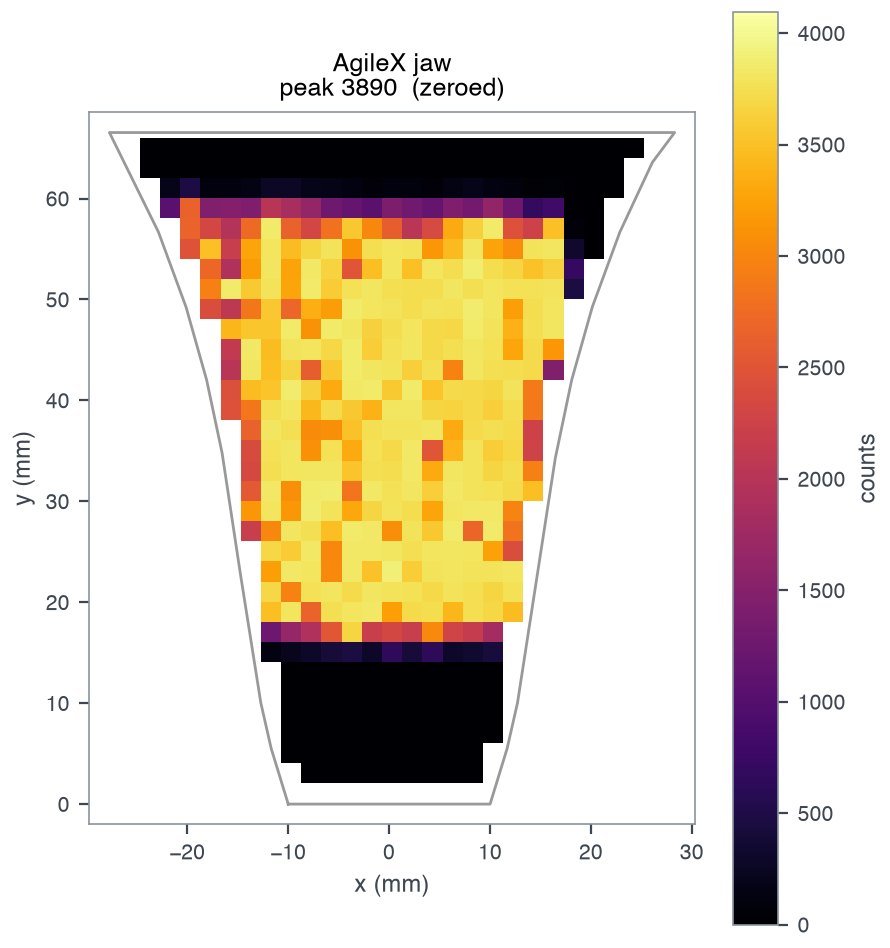
a switches autoscaling of the colours, s shows or hides the arrows, and q quits. Read a sensor lists every key and covers recording, reading frames in Python, and converting counts to newtons.
opentac view displays taxel readings and shear arrows with a different colour scheme.Troubleshoot the readout
| What you see | What to check |
|---|---|
no OpenTac readout board ... found on USB |
The cable carries data. No other program has the board's port open: close any other viewer or serial monitor. The board has been flashed. |
the board holds no skin |
Run uv run opentac setup with the sensor's ZIP. |
| Nothing responds to a press | The contacts face the wrong way somewhere. At the readout board the tail goes in with the stiffener up and the contacts down. Through an extension cable, the cable must be A type (contacts on the same face at both ends), with the contacts down into both connectors (Cables and extension boards). |
| A row or a column stays dark, or several | The tail is not fully seated. Open the latch, push the tail in square to the stop, and close the latch. Check the tail and the cable for a crease or a cut. |
| A press shows up in the wrong place, or mirrored | Through an extension: a cable of the wrong type, or one end the wrong way round (Cables and extension boards). Without one: the board holds another sensor's layout. Run opentac setup with this sensor's ZIP. |
| Taxels show a reading with nothing touching | Press b with hands off to zero again. |
| A firm press turns many taxels to the top of the scale, on the 60-pin board | Lower the gain: uv run opentac view --set GAIN_SW=2 (Gain). |
Recording and multi-sensor readout
Read a sensor covers recording takes, reading frames in Python, the board's settings and calibration to newtons. To read several 30-pin boards over one USB port, see Daisy-chain boards.